
Whitelist ninZa.co’s Email
In order to make sure our newsletters are delivered to your inbox (so that you won't miss exclusive benefits for ninZaFamily), you will need to add [xyz-ihs snippet="ninzaemail"] to your whitelist, also called the "Approved/Safe Sender" list.
Please scroll down to view instructions on how to whitelist ninZa.co's email.

Gmail
- Open any of our newsletters.
- Click the 3-vertical-dot symbol on the top-right corner of the email.
- Click "Add ninZa.co Indicators to Contacts list" to finish.

Apple mail
- Click [xyz-ihs snippet="ninzaemail"] in the header of the message you’re viewing.
- Click "Add" to finish.

AOL mail
- Click "Contacts" in the right toolbar.
- Click "Add Contact".
- Enter [xyz-ihs snippet="ninzaemail"] and additional information if you wish.
- Click "Add Contact" button in the popup to finish.

Comcast
- Click "Preferences" from the menu.
- Click "Restrict Incoming Email".
- Click "Yes" to "Enable Email Controls".
- Click "Allow email from addresses listed below".
- Enter [xyz-ihs snippet="ninzaemail"] you want to whitelist.
- Click "Add".
- Click "Update" to finish.

Earthlink
- Click "Address Book".
- Click "Add Contact".
- Save ninZa.co Indicators as a contact.
- Click "Save" to finish.
Netzero
- Click the "Address Book" tab on the top menu bar.
- Click "Contacts".
- Click "Add Contact".
- Enter [xyz-ihs snippet="ninzaemail"] and additional information if you wish.
- Click "Save" to finish.

Yahoo mail
- Open any of our newsletters.
- Click "Add to Contacts" next to [xyz-ihs snippet="ninzaemail"].
- Enter additional information if needed.
- Click "Save" to finish.

Windows Live Hotmail
- Open any of our newsletters.
- Click "Add to Contacts" next to [xyz-ihs snippet="ninzaemail"] to finish.

Outlook 2003
- Open any of our newsletters.
- Right-click the gray bar at the top of the message.
- Click "Add Sender to Senders Safe List" to finish.
Outlook 2007
- Right-click any of our newsletters (in the incoming email list).
- Click "Junk E-mail".
- Click "Add Sender to Safe Senders List" to finish.
Outlook 2010
- Click the "Home" tab.
- Click "Junk".
- Click "Junk E-mail Options".
- Click "Safe Senders".
- Click "Add".
- Enter [xyz-ihs snippet="ninzaemail"] and additional information if you wish.
- Click "OK" to finish.
Mac mail
- Click "Address Book".
- Click "File".
- Click "New Card".
- Enter [xyz-ihs snippet="ninzaemail"] and additional information if you wish.
- Click "Edit" to finish

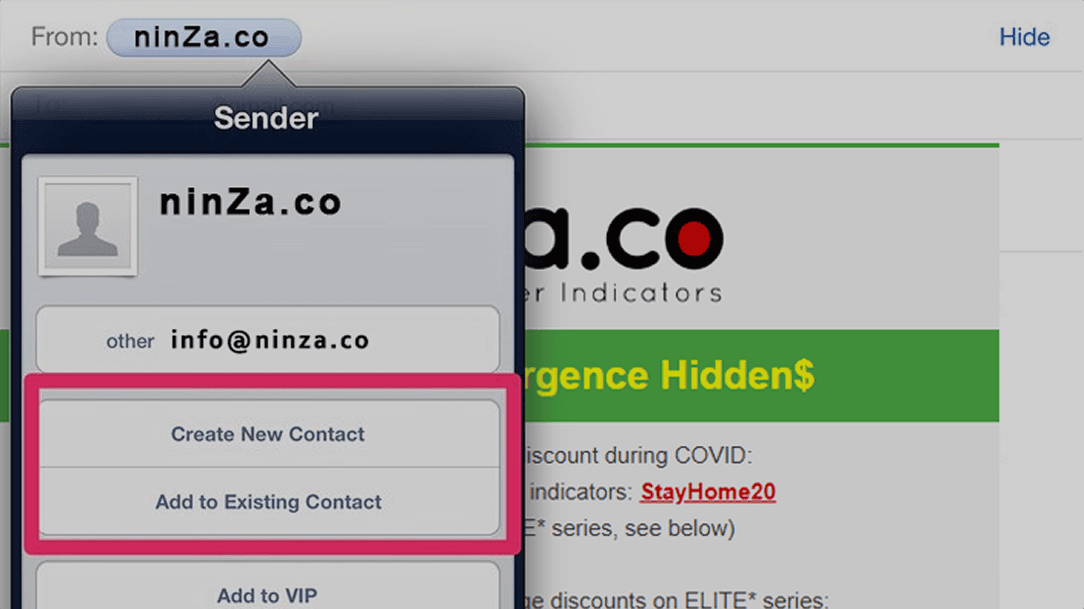
iOS Devices - Ipad, Iphone, Ipod touch
On any of our newsletters, tap the sender and add to either a new contact or an existing contact.

Android Devices - Samsung, Google Nexus, others
- In the default email client, touch the picture of the sender.
- Click "OK" to add [xyz-ihs snippet="ninzaemail"] to contacts.
Download ~ 40 FREE indicators & reach more useful resources !!!
LIVE Intraday Trading | Stop chasing Early Entries. Let Timing guide your entry →

NINZA Indicators
0 online
[NEW] Trade trending & choppy markets with Wave Intelligence
Discover your edge

Live Trading Nasdaq | 19 trades, 16 wins with Renko system Poseidon Trident —E
_1787026707358.svg)
NINZA is an official member of NinjaTrader Ecosystem together with 600+ industry-leading professionals that provide traders with quality trading products & services.




even more payment methods
Quick Links
Instructions
Support
Resources & Information
© Copyright 2026 All Rights Reserved



Because software products may be copied and stored easily, we will NOT issue refunds of any kind. ALL SALES ARE FINAL & NON-REFUNDABLE!
Futures, foreign currency, and options trading contains substantial risk and is not for every investor. An investor could potentially lose all or more than the initial investment. Risk capital is money that can be lost without jeopardizing one's financial security or lifestyle. Only risk capital should be used for trading and only those with sufficient risk capital should consider trading. Past performance is not necessarily indicative of future results.
Hypothetical performance results have many inherent limitations, some of which are described below. No representation is being made that any account will or is likely to achieve profits or losses similar to those shown; in fact, there are frequently sharp differences between hypothetical performance results and the actual results subsequently achieved by any particular trading program. One of the limitations of hypothetical performance results is that they are generally prepared with the benefit of hindsight. In addition, hypothetical trading does not involve financial risk, and no hypothetical trading record can completely account for the impact of financial risk of actual trading. For example, the ability to withstand losses or to adhere to a particular trading program in spite of trading losses are material points which can also adversely affect actual trading results. There are numerous other factors related to the markets in general or to the implementation of any specific trading program which cannot be fully accounted for in the preparation of hypothetical performance results and all which can adversely affect trading results.
NinjaTrader® is a registered trademark of NinjaTrader Group, LLC. No NinjaTrader company has any affiliation with the owner, developer, or provider of the products or services described herein, or any interest, ownership or otherwise, in any such product or service, or endorses, recommends or approves any such product or service.